Omnibotika Help Center
Twitter Direct Message Integration
To integrate Twitter Direct Message into your Omnichannel dashboard, please follow these steps :
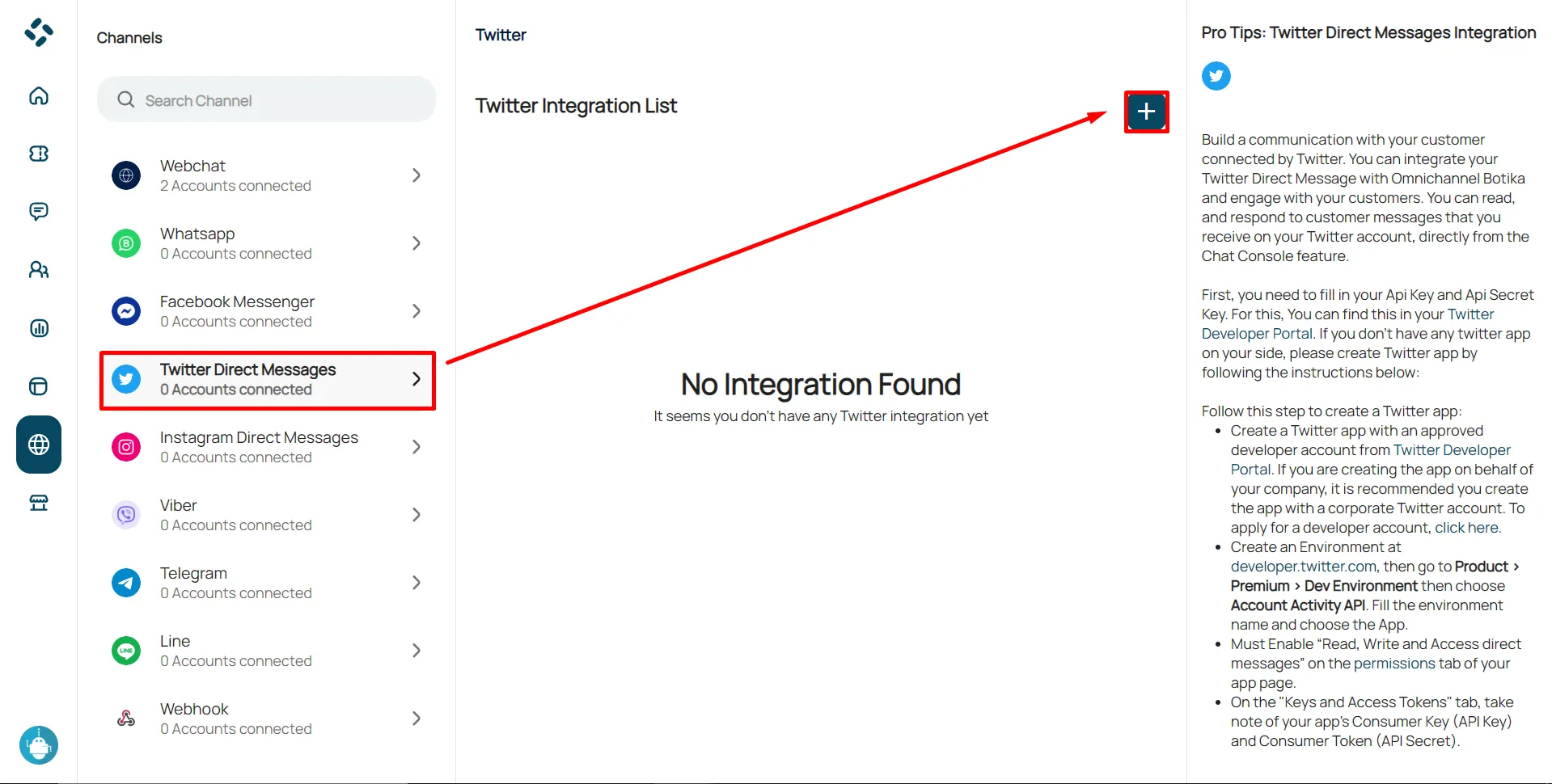
Open the channel menu, then select Twitter Direct Messages. Click the plus icon (+).
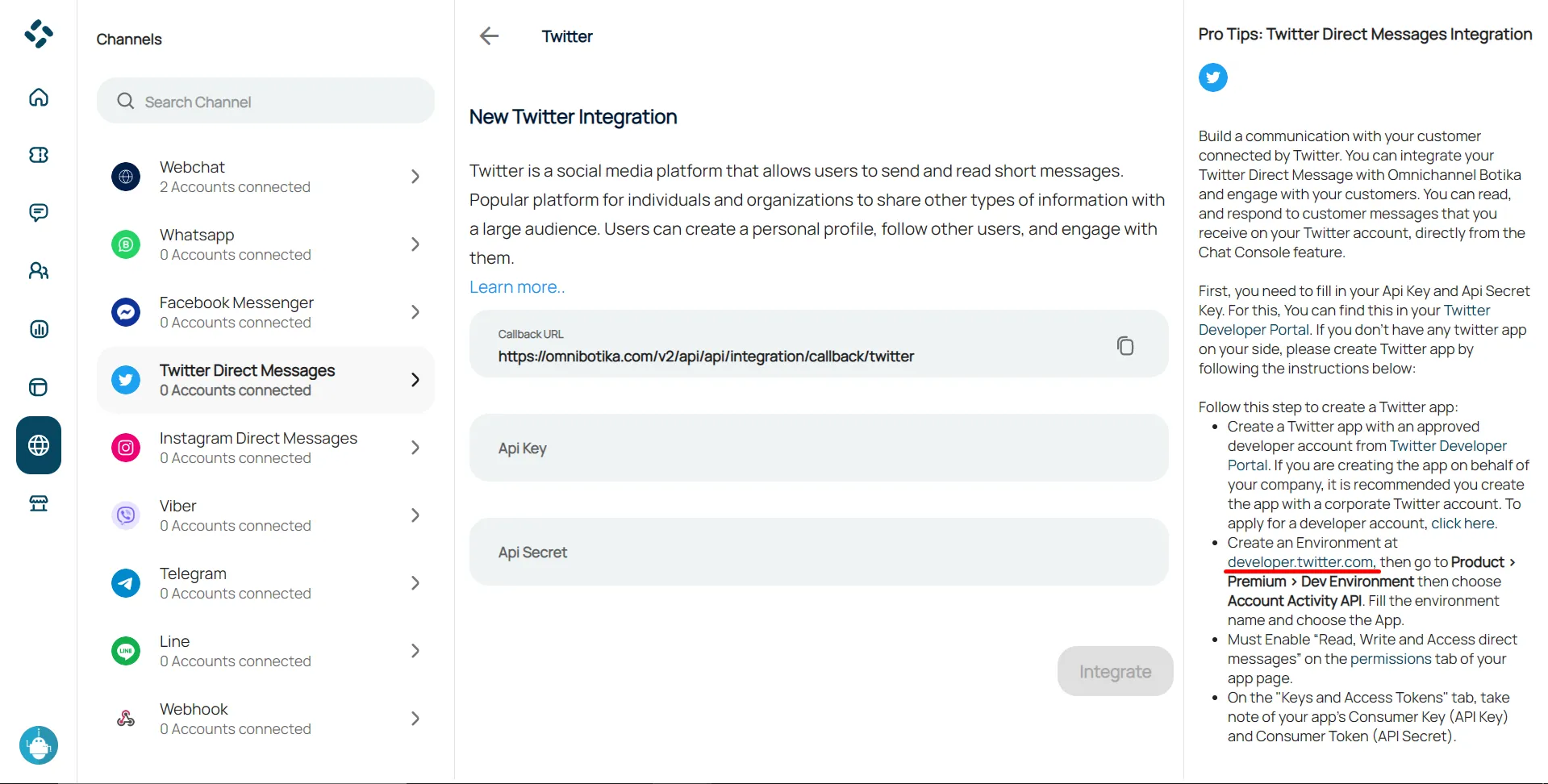
Log in to Twitter Developer Portal, and make sure your account is logged in to a Twitter.
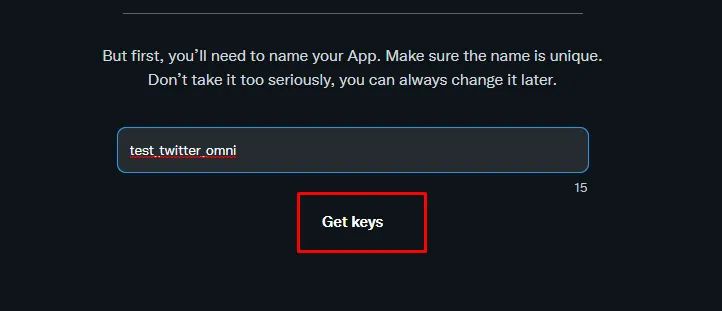
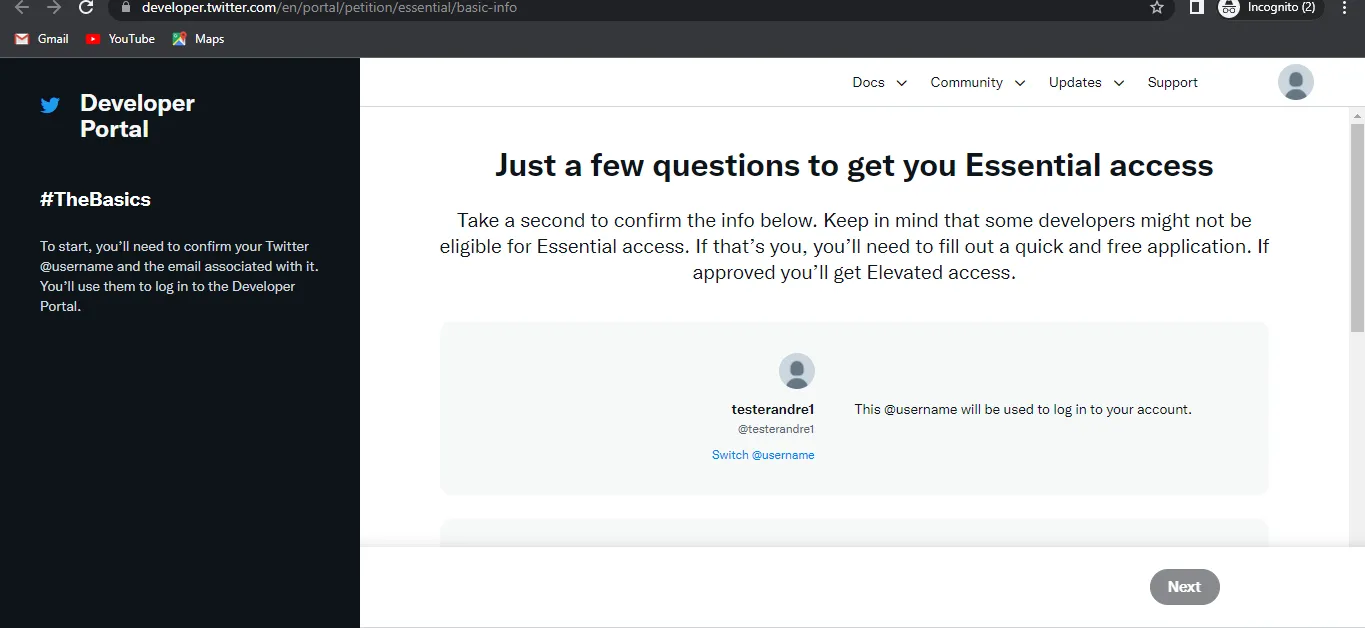
First, you will be asked to fill in the name of the app that will be created, then click “Get keys”.
Then you will be asked to answer several questions (Name, Country, and API usage) as show below. In use for this Botika omnichannel integration, you can answer use case questions like the example image below.
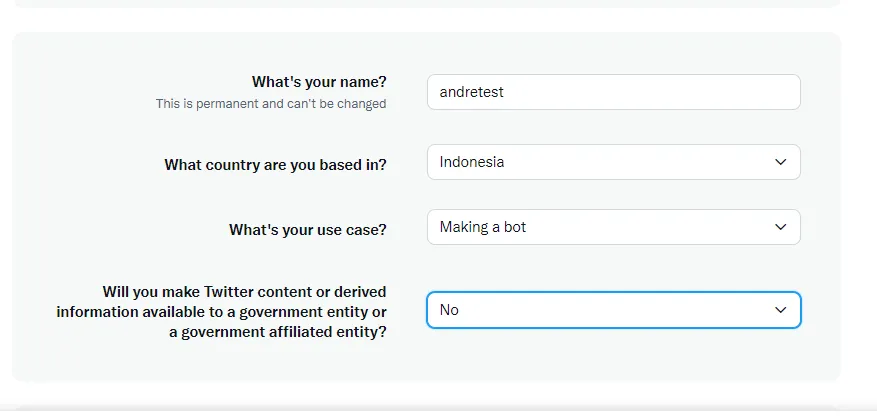
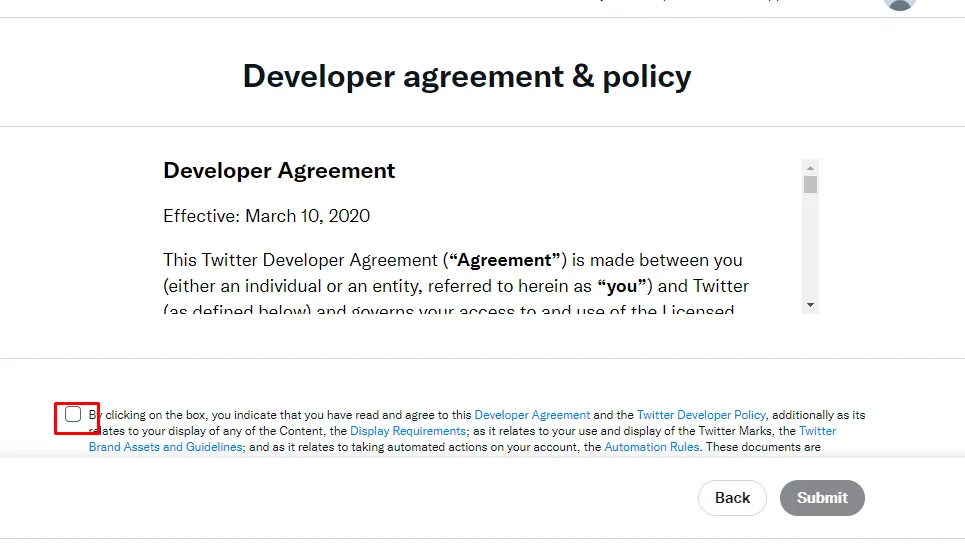
Agree to terms and rules, then click submit.
To again access to the “elevated account” you will be asked to go through several steps to answer questions.
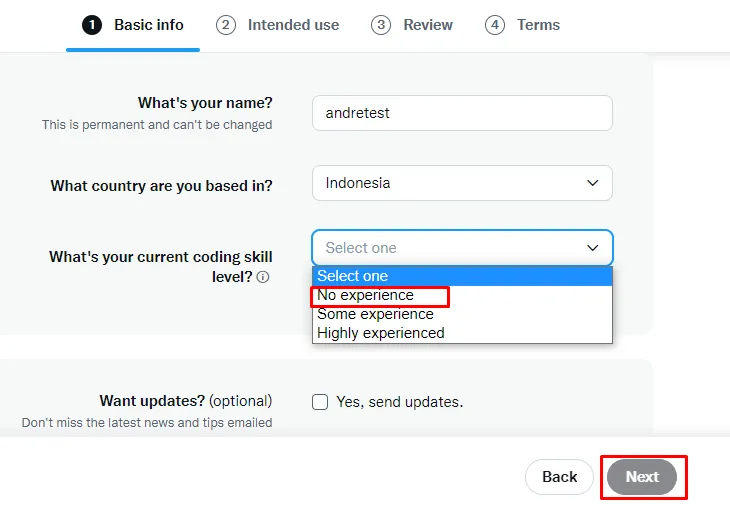
Basic Info Stage : you can answer coding skills according to yout experience and ability, then click Next.
Intended USe Stage : You are asked to describe the intended use of the API/Twitter data (minimum 200 characters). The following is the format for filling in the application for the use of API/Twitter data to get an elevated account.
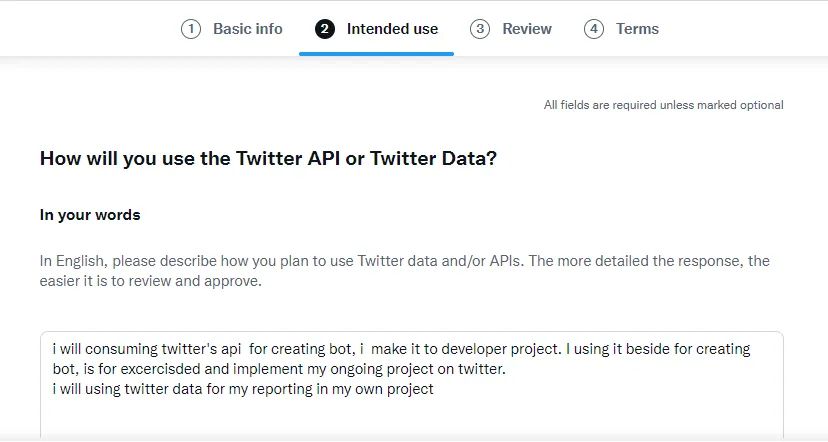
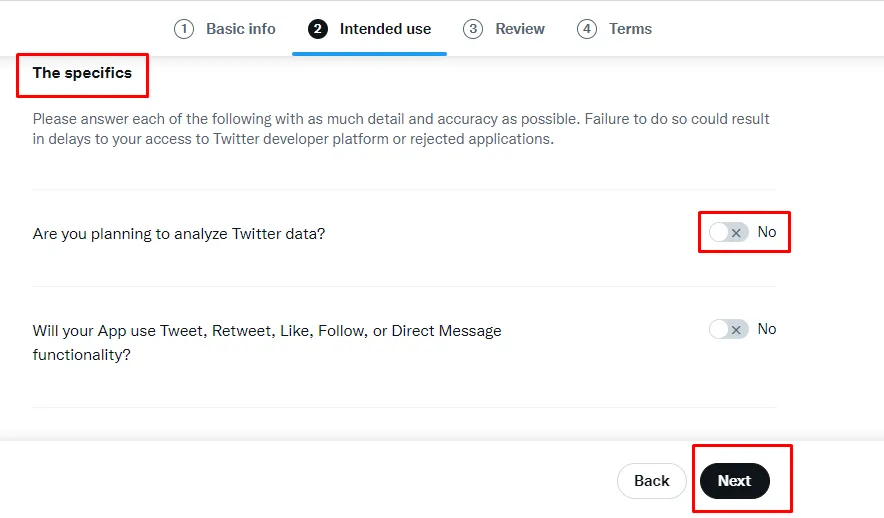
For this specific part it is optional, then next.
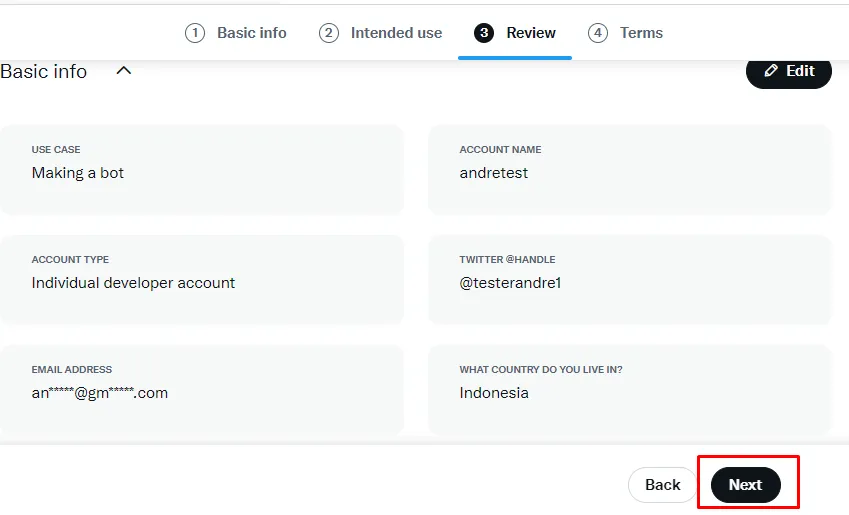
Review Stages : Stages, in the review section, only contain data that we have previously filled in, if there is nothing you want to change, click next.
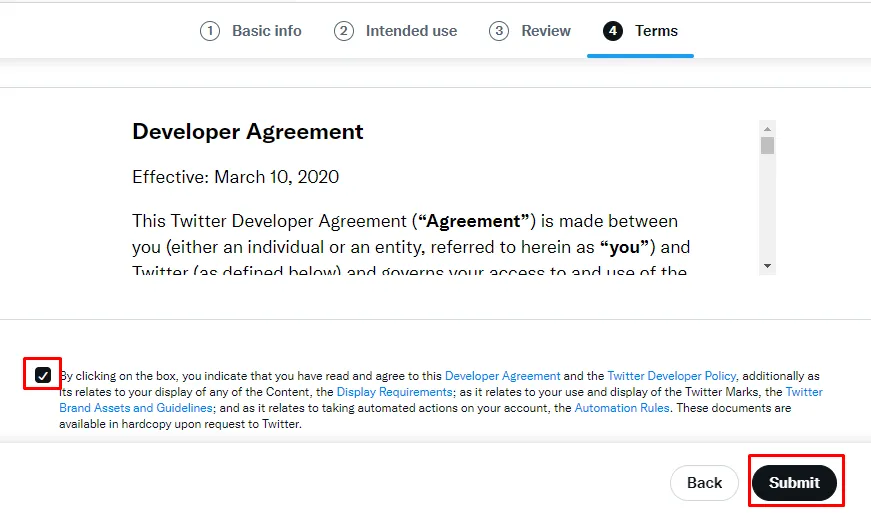
Terms Stege : agree to the terms, then submit.
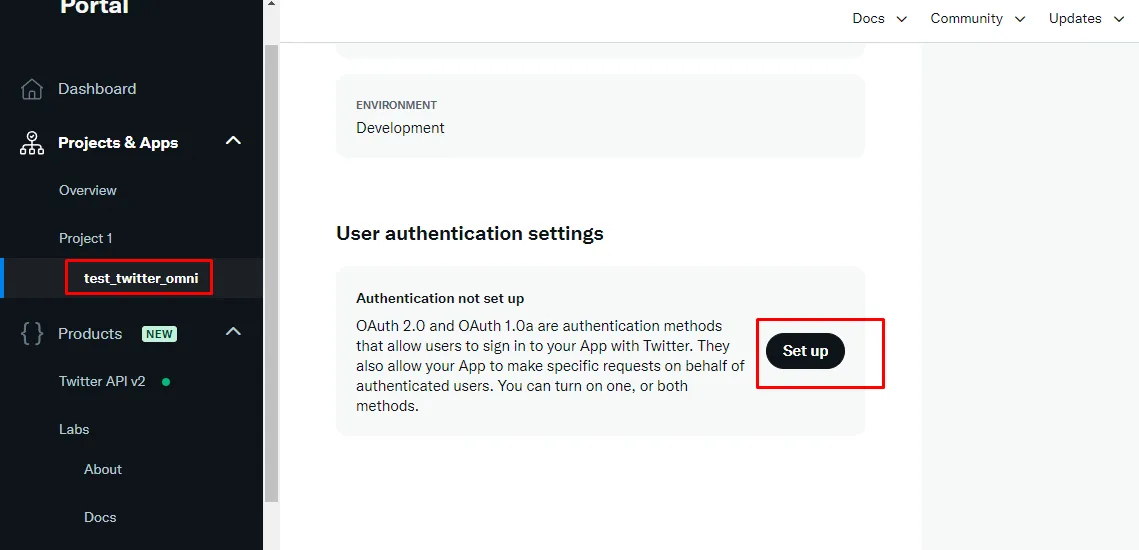
Then return to the developer portal, go to the Project & APP menu, the Project 1 section, and click the name of the app that we have created. In user authentication settings click Set Up.
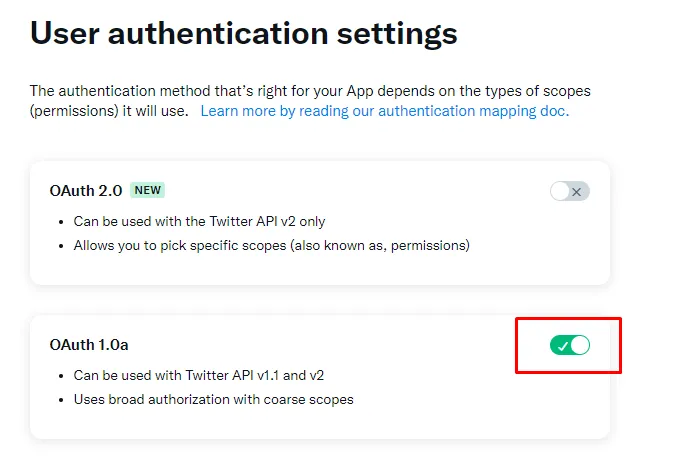
Select part OAuth 1.0a.
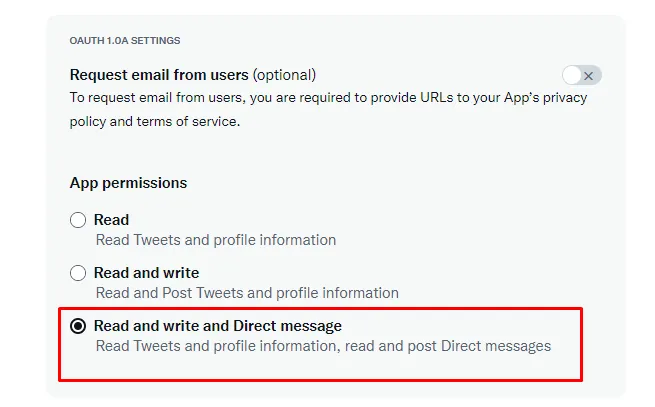
For App permissions make it “Read and write and direct message”.
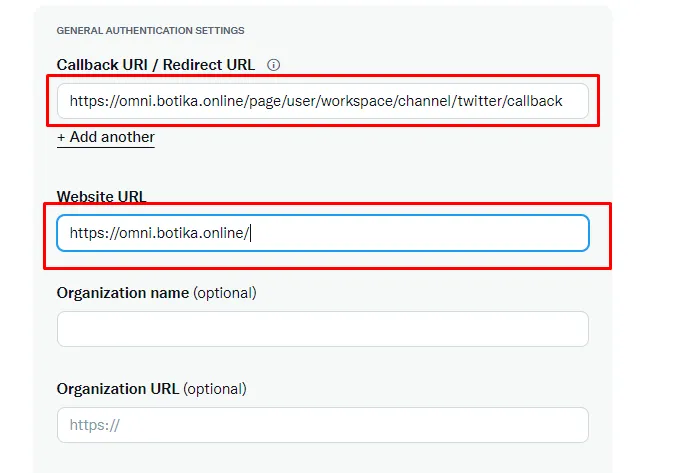
Then go back to the Omni Twitter channel, copy the Callback URL section.
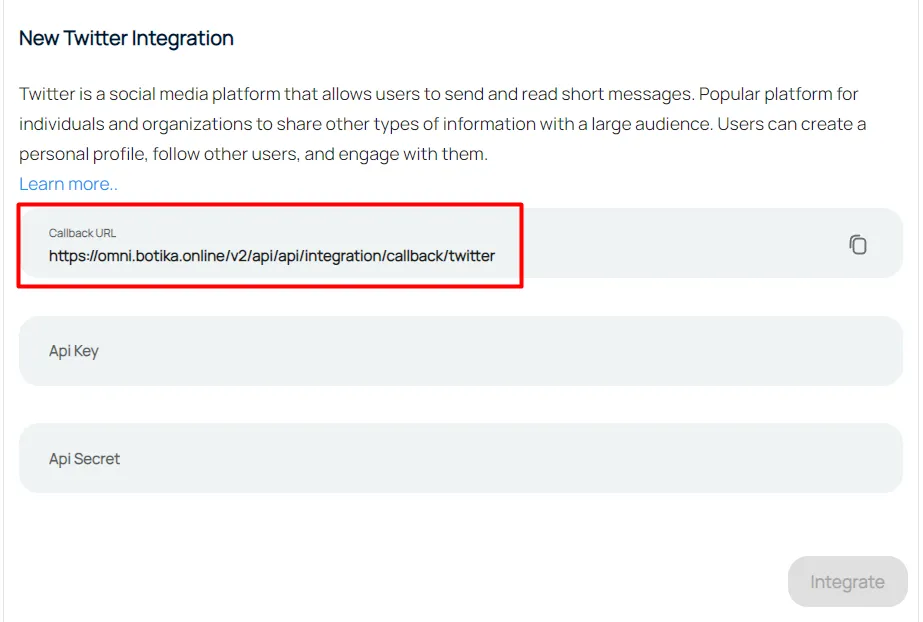
Go back to the portal paste the Callback URL and enter the Omni web URL, then save.
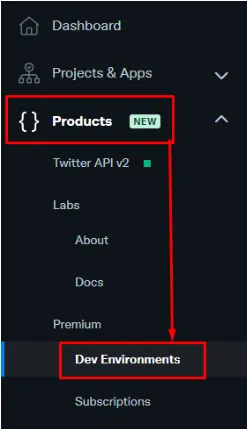
Go to the Product menu in Dev Environments section.
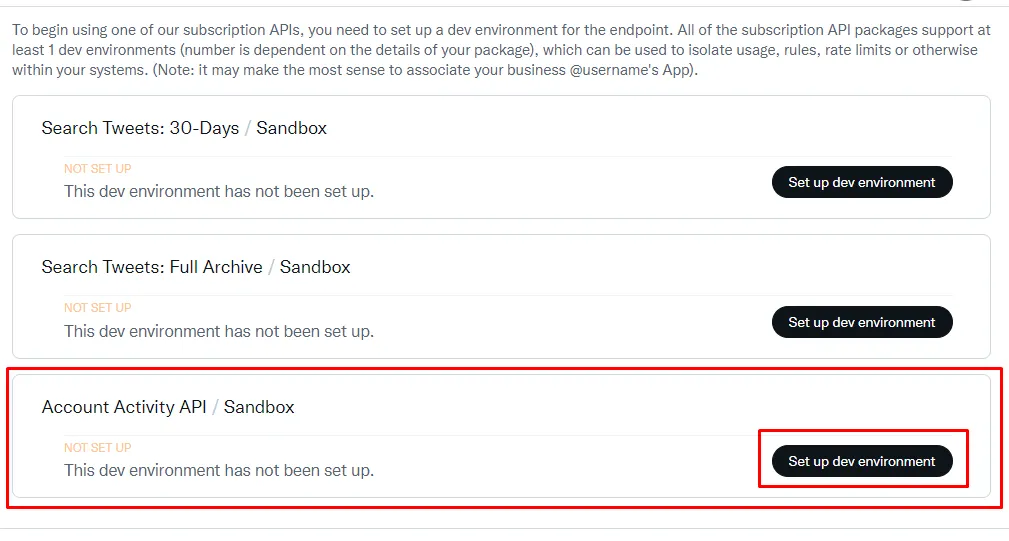
In the Account Acticity API / Sandbox section, click “Set up dev environment”.
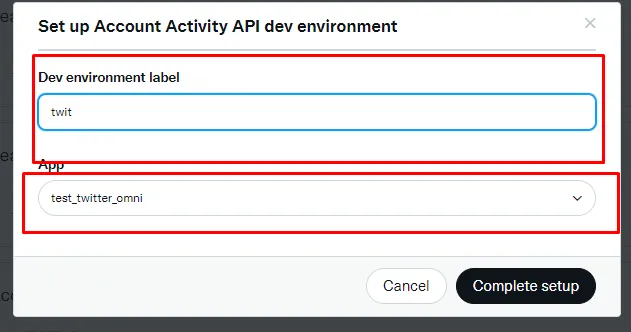
Enter the label and select the project app name that was created.
Go to Project & App, click on the project name that has been created in the Keys & Tokens section.
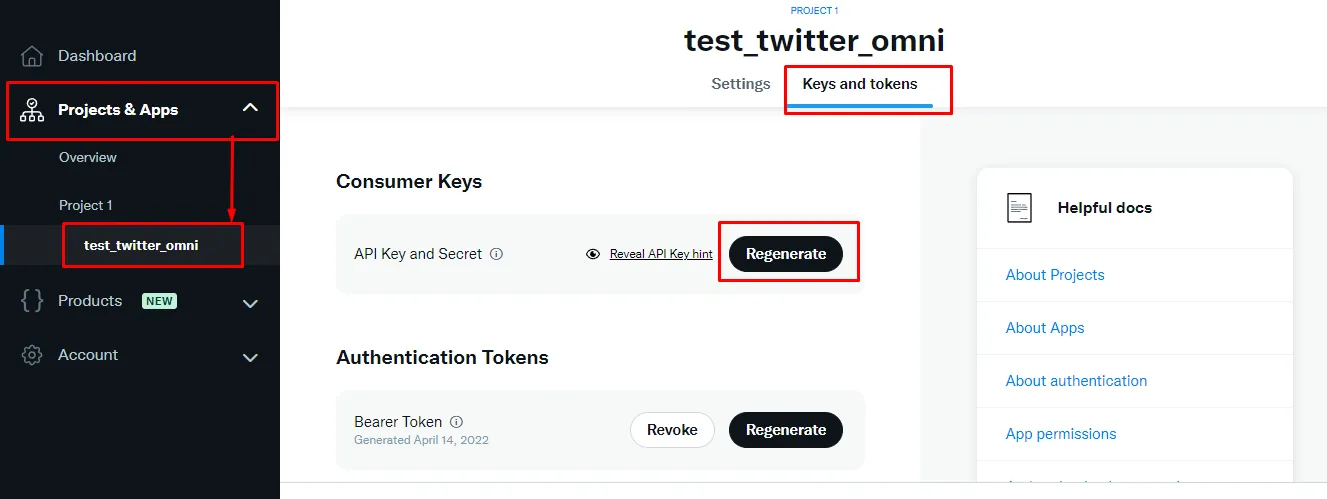
Then Regenerate, save API Key and API Key Secret, and copy.
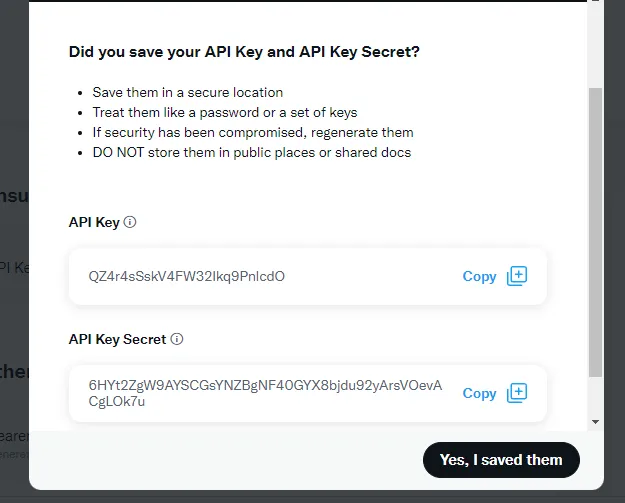
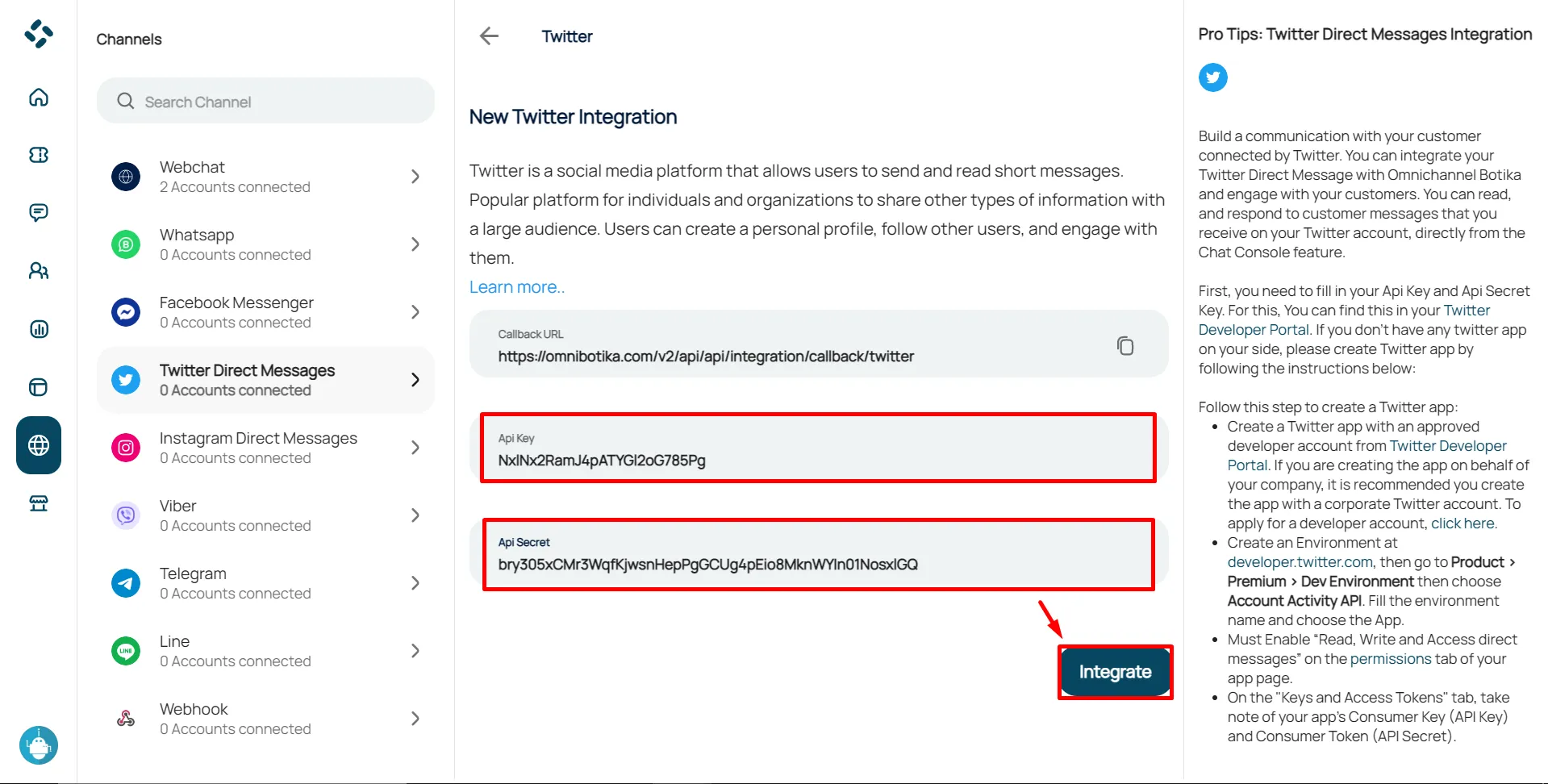
Go to the OMNICHANNEL Botika in the Twitter integration section, paste the API Key and API Secrets Key, then click the “Integrate” button.